Companion robot ownership
Used Companion Robot Checklist: 18 Handover and Privacy Tests
A physical receipt does not transfer a cloud account, erase sensor data or prove that a used robot still receives security updates. Test the digital handover before normal use.
The short answer
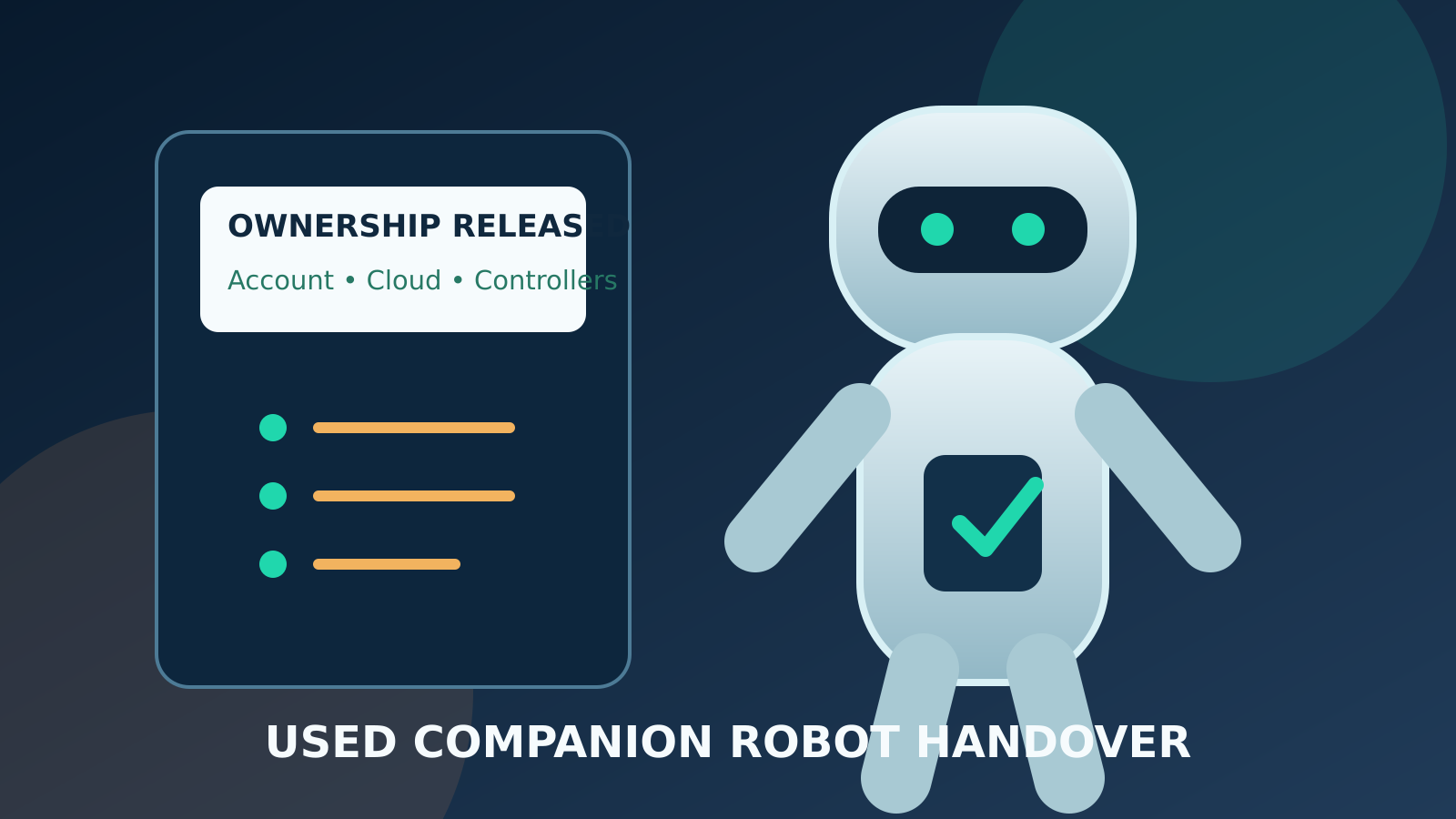
Before paying for a used companion robot, confirm the exact model, serial status, remaining software support and the maker's official transfer process. The seller should remove the device from every account, revoke controllers, delete cloud data where possible and perform the documented reset. The buyer should onboard with a new account, update software, test privacy and stop controls, and reject any unit that remains remotely bound.
A connected companion robot is not transferred safely merely because the charger and keys change hands. The product may retain Wi-Fi credentials, paired phones, voice samples, camera clips, learned preferences, maintenance histories and cloud-side identifiers. It may also depend on an account that the seller cannot legally or technically transfer. Treat the sale as two events: a physical change of possession and a verified digital reprovisioning.
NIST IR 8425 says consumer IoT customers should receive information about data creation, updates and deletion, long-term maintenance, secure reprovisioning and disposal. NIST IR 8350 describes a device manager disconnecting, isolating and erasing sensitive data when equipment is decommissioned, and transferring control when it is repurposed. Those principles do not certify a particular robot, but they provide a useful structure for deciding what evidence to demand.
This checklist is for ordinary private sales, retailer trade-ins and manufacturer-approved refurbishment. It is not a method for bypassing an account lock, ownership control or activation restriction. If the seller cannot release the product through the official channel, stop. A plausible story is not a substitute for a transfer the maker recognizes.
Before meeting: identify the product and the transfer path
1. Match the model, revision and serial label
Ask for clear photos of the model plate, charger specification and visible accessories without requesting the seller to post the full serial publicly. Product names can cover multiple hardware revisions with different batteries, sensors and software. At the meeting, compare the private serial with the receipt and the device's own information screen. Mismatches need an explanation supported by records.
2. Find the official transfer instructions
Use the manufacturer's current support site, manual or verified service channel. Determine whether the seller must remove the device from an account, whether the buyer creates a separate account, and whether ownership release can take hours or days. A factory reset and an account unlink are often different actions. Do not assume one performs the other.
3. Check software support before price
Record the installed firmware, latest offered version and any published end-of-support date. A low price does not compensate for a networked product that can no longer receive security fixes. If the support period is unclear, price the uncertainty as a limitation, not as an implied promise that community software will solve it.
4. Confirm that the seller can prove lawful possession
Look for a purchase receipt, refurbishment invoice or other credible provenance. Redact unrelated payment and address data when records are shared. Do not proceed when identifiers appear altered, the unit is reported lost, or the seller refuses a reasonable ownership check. Contact the maker or marketplace through official channels if an activation status is disputed.
Seller-side privacy and account release
5. Export only data the seller is entitled to keep
The seller may want maintenance records or personal media. Use the vendor's documented export tool, store the export privately and inspect it before deletion. Do not copy another household member's recordings or credentials merely because the account owner can reach them. Data minimization matters during departure as much as during setup.
6. Remove every controller and delegated user
Review phones, tablets, web sessions, household profiles, voice assistants and service accounts that can control or observe the robot. Sign them out or revoke them through the official interface. Deleting the mobile app from one phone does not necessarily revoke its token or a family member's access.
7. Delete cloud records separately from local data
If the vendor offers deletion for recordings, learned profiles, activity history or biometric-like settings, use it and record the request date. Read what the confirmation actually promises: some records may be retained for security, warranty or legal purposes. A local reset cannot prove that server-side copies vanished.
8. Remove the robot from the seller's account
Complete the maker's unlink or release process while the seller can still authenticate. Look for a confirmation in both the account and the device list. If the product remains visible after the stated processing time, pause the transaction. Do not share the seller's password with the buyer as a workaround.
9. Forget Wi-Fi, Bluetooth and smart-home links
Remove saved networks, paired controllers, hubs and third-party integrations through documented menus before reset. Change household secrets if the product cannot reliably erase them. For connected-home accounts, revoke the integration at the service as well as on the robot.
10. Perform the official reset and observe completion
Follow the exact model instructions with the robot stationary and safely supported. A reboot, settings reset and factory reset are not interchangeable. Wait for the documented first-run or unclaimed state. Photograph only the neutral setup screen, not personal information. If the process fails, use authorized support rather than improvised service codes.
Buyer-side onboarding tests
11. Start with a new account and unique credentials
The buyer should create their own account using a unique password and multi-factor authentication when available. Never inherit the seller's email, recovery phone or password manager entry. Confirm that password recovery routes belong only to the buyer before adding personal settings.
12. Prove that the old owner has lost access
After onboarding, ask the seller to check their device list and demonstrate that the robot is absent. The buyer should also inspect authorized sessions and controllers. This cooperative check is not absolute proof against every retained credential, but a failure is decisive: stop using the robot until official support resolves the binding.
13. Install the current official update
Update through the maker's application or device interface while connected to a controlled network. Verify the resulting version and restart behavior. Do not install firmware supplied by the seller on removable media unless the manufacturer authenticates that exact process and file.
14. Inspect battery, charger and moving parts
Check for swelling, impact damage, unusual heat, frayed cables, liquid ingress and nonstandard repairs. Keep the robot unpowered if a battery enclosure is distorted or a charger rating does not match. A digital reset cannot correct a physical hazard. Use an authorized technician for internal inspection.
15. Test privacy modes without sensitive material
Use an empty room and neutral sample data to verify camera shutters, microphone indicators, recording controls and deletion behavior. Review operating-system app permissions and the vendor privacy settings. Indicators and menus are useful evidence, but they do not independently prove every network-side data flow.
16. Test stop, pause and power isolation
With motion disabled or at the lowest safe setting, locate the physical stop and shutdown controls. Confirm that household members can reach them and understand the difference between pause, sleep and power isolation. Our emergency stop checklist gives a separate no-motion rehearsal.
17. Put the robot on a restricted network first
Use a documented guest or IoT network during evaluation, then verify whether the product can reach trusted computers or storage. Do not weaken the main network for an older radio. The home network checklist explains practical isolation, update and revocation tests.
18. Write down the new baseline
Record the date, firmware version, account owner, authorized controllers, reset result, support contact and any unresolved limitation. Keep the serial and receipt in a private location. A dated baseline makes later account alerts, repair visits and resale decisions easier to investigate.
Deal breakers that should end the transaction
Walk away if the device remains locked to another account, the seller asks the buyer to evade activation, identifiers do not match, the battery is damaged, safety controls cannot be demonstrated, required updates fail, or the maker says the unit is unsupported. Also stop when the buyer must accept the seller's cloud history to make ordinary functions work. These are not small setup inconveniences; they show that possession and control have not been cleanly separated.
A marketplace protection window is valuable only when tests happen promptly. Keep messages, listing screenshots and receipts, but avoid publishing serial numbers or private images in a dispute post. State observable facts: which official step failed, when it failed, and what support reported.
Sources and scope
This guide was checked on October 18, 2026 against NIST IR 8425, Profile of the IoT Core Baseline for Consumer IoT Products, its consumer IoT cybersecurity fact sheet, and NIST IR 8350, Foundational Concepts in Trusted IoT Device Network-Layer Onboarding. They support the general principles of data management, secure defaults, maintenance, decommissioning and reprovisioning; they do not validate a seller, marketplace or robot model.
For related checks, see our data deletion guide, software support guide and camera and microphone privacy guide. Always use current manufacturer instructions for model-specific transfer and reset procedures.